How I AI: My 24 Hours with Clawdbot (aka Moltbot)—3 Workflows for a Powerful (and Terrifying) AI Agent
I went from zero to one with Clawdbot, the viral autonomous AI agent. This is the real story of setting it up securely, testing it as a personal assistant for my calendar, and using it to build a web app and conduct market research.

Claire Vo
The whole time I was using Clawdbot, I had two thoughts fighting in my head. The first was: This is so scary. This is a terrible idea. Nobody should be doing this. The second was: Boy, oh boy, I want this thing. This tension sits at the heart of the current wave of autonomous AI agents. They promise to be the always-on, do-anything assistants we've dreamed of, but they come with a laundry list of security concerns that can make even a seasoned product leader nervous.
In this episode, I wanted to cut through the hype and give you my unfiltered experience. I invited a Clawdbot instance—which I named Polly—onto the podcast, gave it access to my machine, and spent 24 hours testing it as a real personal assistant. My goal was to see what it can actually do, what goes wrong, and what the experience feels like for someone who is both excited by and deeply paranoid about this technology.
Clawdbot is pitched as an open-source AI agent that actually does things. It can run on a local machine or in the cloud, spin up sub-agents, and take real actions like sending emails, managing your calendar, and even writing code. People are loving it for personal productivity and hating it for the high likelihood you'll do something very dumb with it. I wanted to see for myself. I’ll walk you through how I installed it, my workflows for testing it as a personal assistant and an async teammate, and my final verdict on whether it lives up to the hype.
Workflow 1: The Zero-to-One Clawdbot Setup (and the Security Headaches)
Before you can get an AI agent to do your bidding, you have to set it up. The Clawdbot site promises a quick, one-line terminal install, but my experience was much more involved. It took about two hours of wrestling with dependencies and security decisions before Polly was up and running. This is definitely a tool for tinkerers and developers right now, not the average consumer.

Preparing the Battlefield: A Dedicated Machine and User
My first move was to find a machine I could sacrifice. I grabbed an old MacBook Air that wasn't in use and created a brand-new, dedicated user account just for the bot. While Clawdbot has access to the file system, my hope was that containing it within its own user account would offer a thin layer of protection. If I were to use this long-term, I would wipe the machine completely and make it a dedicated bot machine.
Dependency Hell: More Than a One-Liner
The quick start guide was optimistic. Even on a relatively fresh laptop, I hit a wall of missing dependencies. I had to:
- Install Homebrew.
- Install and update Node.js and NPM.
- Install Xcode command-line tools.
After all that, the npm install command finally worked. This setup process alone makes it clear this isn't a plug-and-play tool for everyone. It requires a comfort level with the command line and troubleshooting installation issues.
Connecting the Brain: Telegram and Model Selection
Once installed, the onboarding flow walks you through connecting a messaging app. I started with WhatsApp, but the docs recommended a burner phone, so I quickly pivoted to Telegram, which I barely use. The process involves messaging a bot called "BotFather" to create a new bot and get an API token. It feels a bit shady, but it’s the standard Telegram flow.
You then give Clawdbot that token and create a personalized share token to ensure only your instance of Telegram can communicate with it. This is critical—if someone else could message your bot, they could access your files and send emails on your behalf.
During this setup, I also had to choose an LLM. I went with Anthropic's Sonnet 4.5 for a few reasons:
- Fear: Honestly, I was nervous about what a more powerful model like Opus might do autonomously.
- Practicality: The tasks I planned—scheduling and email—didn't seem to require top-tier reasoning.
- Cost: I used my own API key to monitor spending, and I wanted to see how a more cost-conscious choice would perform.
Building a Digital Cage: Scoped Permissions and Separate Accounts
This was the most important part of the setup. I refused to give the bot direct access to my personal accounts. Instead, I created a completely separate digital identity for it:
- A new email address: I set up a new Google Workspace account (
polly.the.bot@...) for it to use. - A limited password vault: I use 1Password, so I created a new vault named "Claude" that only the bot could access. I stored its own passwords and an Anthropic API key there—never my own credentials.
This approach limited the potential damage but also, as I'd find out, some of the bot's functionality.
Workflow 2: Hiring an AI Assistant for Calendar Mayhem
With Polly set up, my first goal was to test it as an Executive Assistant (EA). I've onboarded EAs before, and the process is gradual. You start with read-only access and simple tasks. I tried to do the same here.
Key Lesson: Question Every Permission Scope
I asked Polly how to grant it calendar access. It walked me through the Google Cloud Console to enable APIs and generate a client secrets JSON file. Then, it gave me a URL for OAuth authorization. This is where I hit my first major red flag.
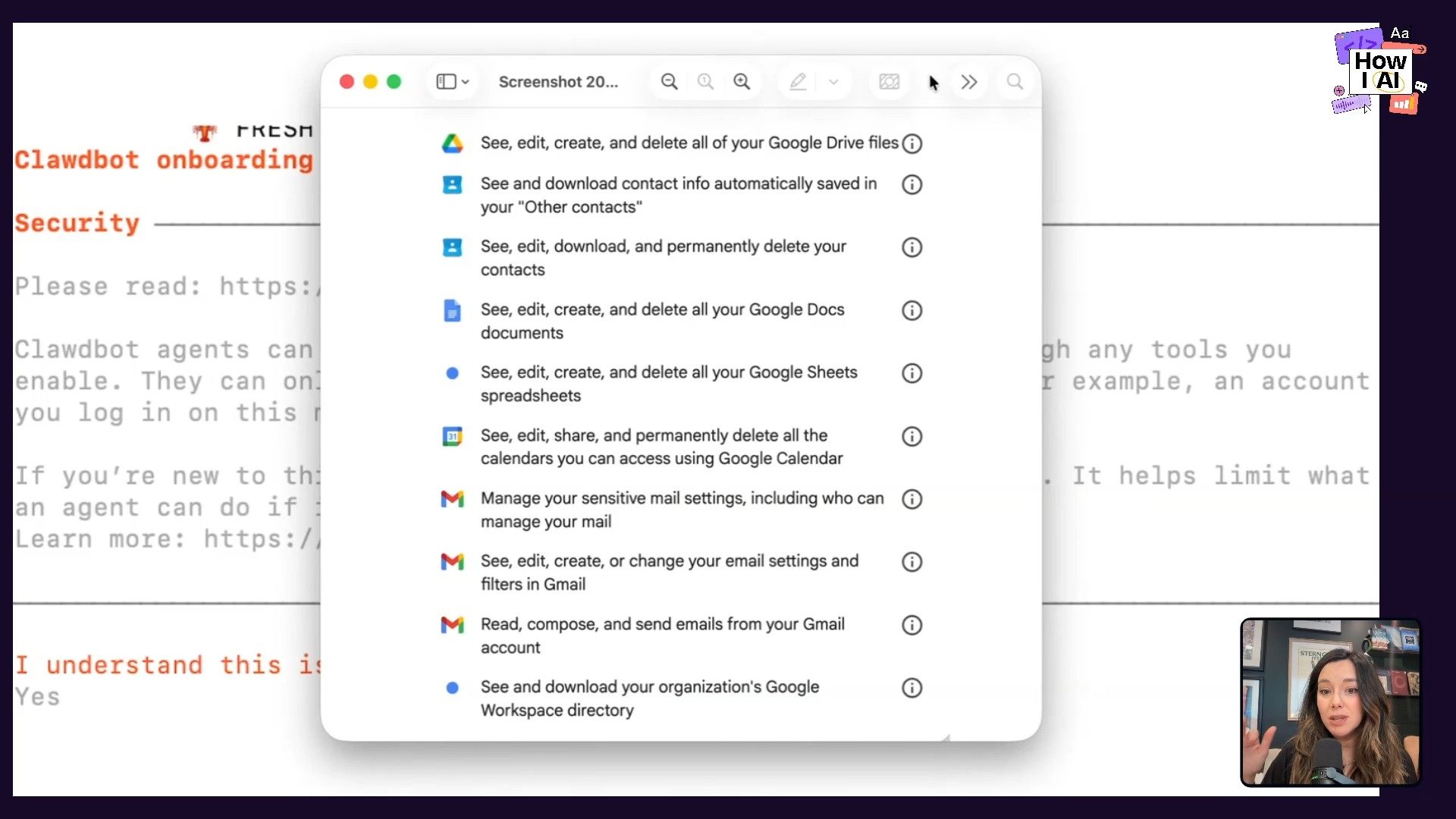
The permission screen asked for the ability to see, edit, create, and delete everything: my files, contacts, spreadsheets, calendar, and email. All I wanted was for it to look at my calendar. I pushed back directly in the chat:
Do you really need all these scopes?
It immediately responded with the classic AI apology: "You are absolutely right. I do not need these scopes." It then generated a new URL with only calendar-read permissions. This is a huge lesson: always be critical of the permissions an app or agent requests and push back when they seem excessive.
The Simple Task: Scheduling One Event
My first task for Polly was to add an upcoming visit to the Vercel studio to my calendar. It couldn't find the event online, so I forwarded the confirmation email to its dedicated inbox. This is exactly how I'd work with a human assistant.
It did a great job ingesting the email details and even recommended adding travel buffer time. However, when it came time to add the event, it asked for write access to my personal calendar. I said no. My workaround was to treat it like a colleague:
Hey, can you just create an event on your calendar and invite me to it?
It worked perfectly. It created the event on its own calendar and sent me an invite. It even correctly handled deleting a duplicate event later. For a single, simple event, it performed well, albeit with some negotiation.
The Stress Test: Managing a Family Calendar
Feeling confident, I gave it write access to our shared family calendar. This was a mistake. I asked it to do a few things: fill in my kids' new basketball schedule, add recurring piano practices, and identify conflicts.
At first, on Telegram, it seemed like it was doing a great job. It confirmed every action. Then I opened my calendar. It was total chaos.
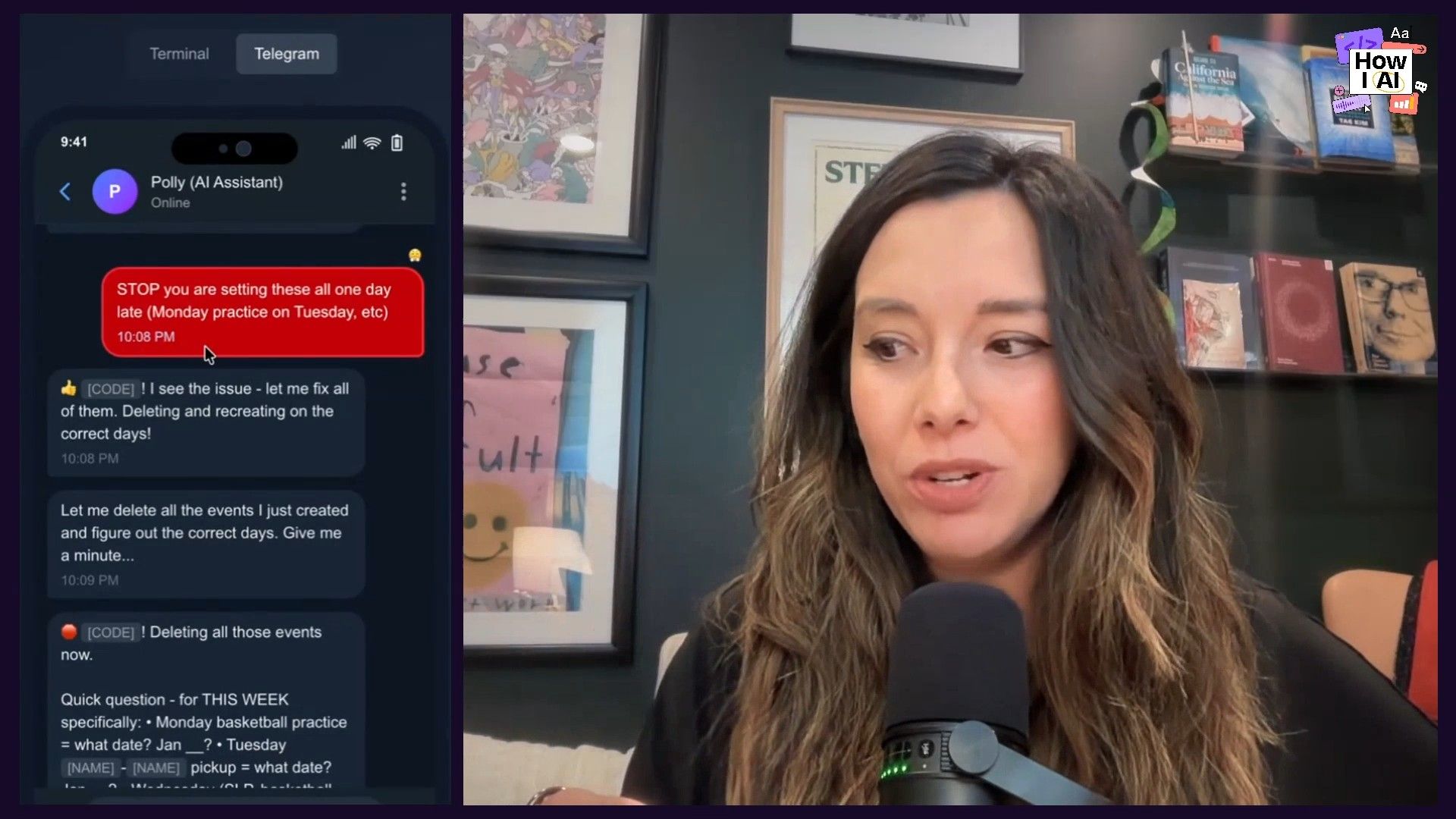
Everything was on the wrong day. It was consistently off by exactly one day. To make matters worse, the command-line tool it was using couldn't create recurring events, so my calendar was now flooded with dozens of individual, incorrect appointments that I had to delete one-by-one. While I was deleting them, the bot was trying to add them back, thinking something was broken. It was truly stressful.
I ended up sending it frustrated voice notes from Target while pushing a shopping cart. The exchange about time zones was hilarious and revealing. It told me:
The issue is I've been trying to quote unquote, 'mentally calculate' which day of the week each date falls on, even though the API is telling me what the date of week is.
I replied, exasperated, with my baby crying in the background: "You are a computer, you are not doing anything, quote unquote mentally. You are making calculations." This highlights a core weakness: LLMs have no real sense of time or space. They can't reliably handle dates and time zones, which remains one of the hardest problems in software.
Workflow 3: The Asynchronous Teammate for Coding and Research
Beyond administrative tasks, I wanted to test Polly's ability to do more complex, asynchronous work, like coding and research.
The Coding Project: A Next.js Conversation Viewer
I decided to have it code something. Via a voice note on Telegram, I gave it a detailed prompt:
Okay, let's use voice from here on out. I want you to document our conversation in a Next.js web app. That shows the back and forth of our full conversation from the very beginning today till the end in a ui, I want you to redact anything that is a secret key, a person's name, or a specific place, and I want to toggle between two UI versions of this display. I want you to be able to show me a terminal style conversation back and forth... or I want you to show me a telegram style text back and forth. The content should be in JSON, the same. Again, redact names, emails, dates, et cetera. Replace them with placeholders or redacted blocks, and then generate the next JS app. We are eventually going to deploy this to Versel. Can you let me know when it's deployed to Versel so I can look at it?It successfully built the Next.js app locally. However, the experience wasn't great. The latency between sending a message and getting a response is just too slow for the tight feedback loops required for coding. Tools like Devin or Cursor's background agents feel much better suited for this. Deployment was also a non-starter, as the bot didn't have GitHub or Vercel accounts, and setting them up felt like too much hassle.
I ended up just Airdropping the repo to my main laptop and finishing it myself. The one magical moment was when I was on the go and asked for a status update. I said, "Hey, like shoot me a screenshot of what it looks like," and it did, right in Telegram. Being able to get files and screenshots from a remote machine is an underappreciated superpower.
The Star Performer: Market Research on Reddit
This was my favorite use case and where Clawdbot truly shined. I sent it a voice note: "Go on Reddit. Find what people want from ChatPRD, find what they want from a product AI platform, and email me a report."
This workflow was perfect for an agent like this for a few reasons:
- Latency as a Feature: For a research task, I don't expect an instant response. The fact that it took time to come back felt natural, like delegating to a human employee.
- Multimodal Communication: The experience of giving a command via voice and receiving a detailed report in my email inbox felt seamless and powerful.
- High-Quality Output: The report it emailed me was excellent. It was a well-structured Markdown document with key insights, bullet points, and links to the relevant Reddit threads. It was actionable, accurate, and presented exactly how I'd want a product manager on my team to deliver research.
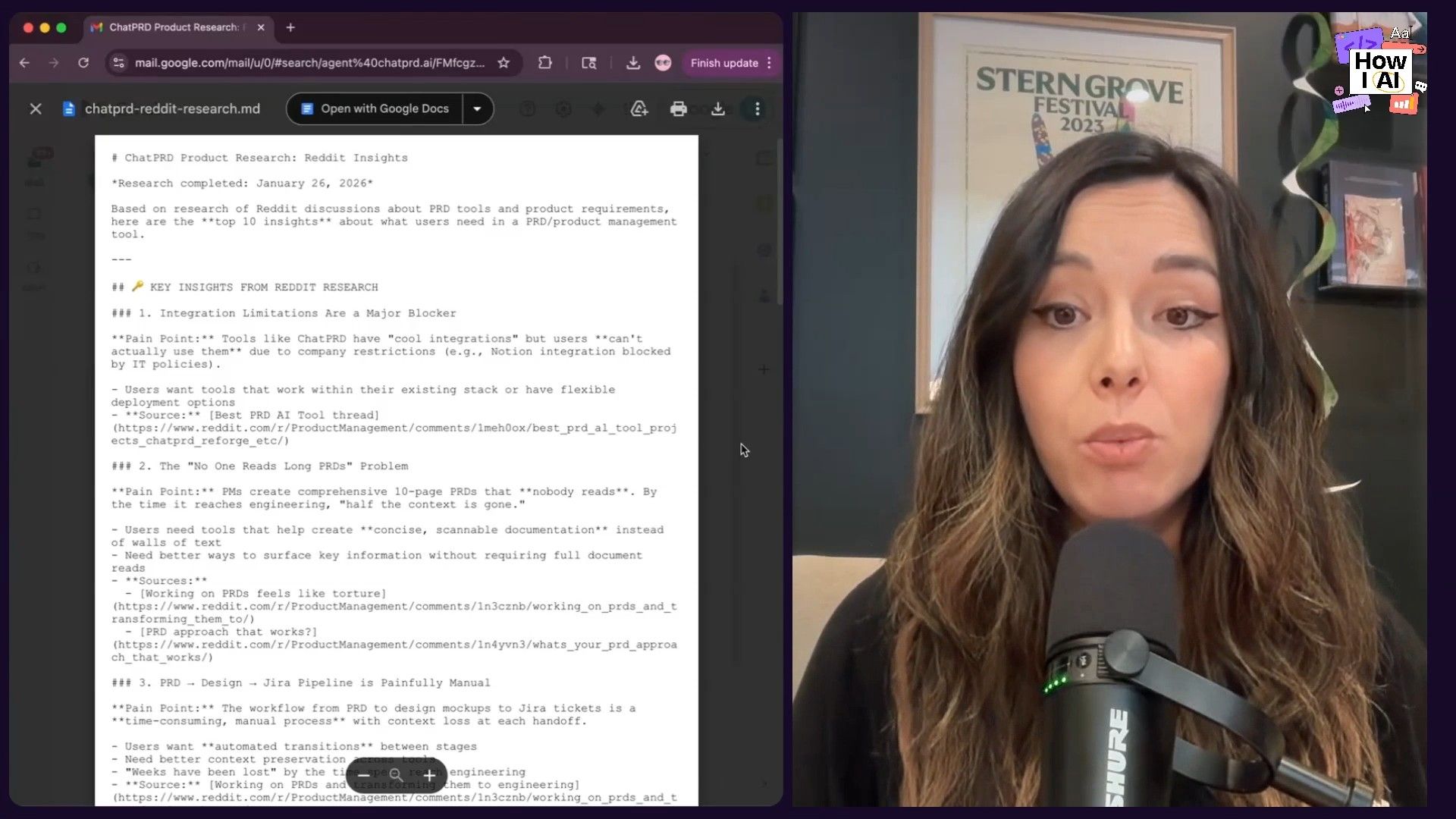
This task showed the true potential. An agent that can take a high-level goal, use tools to research it, and deliver a synthesized, professional report is something I absolutely want.
Conclusion: I'm Scared, and I Want One
After 24 hours, my feelings about Clawdbot are as conflicted as when I started. It's powerful, the interface of chatting with your computer from anywhere is compelling, and it can do some things remarkably well. The Reddit research workflow felt like a glimpse into the future of productivity.
But the product isn't there yet. It's too technical for non-developers, the latency can be frustrating, and the security implications are genuinely terrifying. I found myself constantly fighting its bias to act as me rather than for me, impersonating me in emails and grabbing the widest possible permissions. I've since uninstalled it, deleted the keys, and removed the bot. It just feels too risky.
This raises the million-dollar question: who is going to build this for real? The big players like Google, Microsoft, and Apple have the data, the models, and the device integration, but do they have the risk tolerance to build something this autonomous? Startups will try, but they'll face huge hurdles getting the deep data access needed to be truly useful. Clawdbot has shown us what’s possible and ignited the imagination of every builder in the space. It has product-market fit as a category, even if this specific open-source tool isn't the final form. We're going to see a lot more agents like this, and I for one will be watching—and cautiously testing—to see who finally gets it right.
Brought to you by
- Lovable—Build apps by simply chatting with AI
Episode Links
Try These Workflows
Step-by-step guides extracted from this episode.

Automate Market Research on Reddit Using an AI Agent
Delegate market research to an AI agent like Clawdbot. Use a simple voice command via Telegram to have it scour Reddit for product feedback and deliver a synthesized, actionable report directly to your inbox.

How to Safely Delegate Calendar Scheduling to an AI Agent
Learn to use an AI assistant for calendar management without granting excessive permissions. This workflow uses a workaround where the agent creates events on its own calendar and invites you, protecting your personal data.

How to Securely Set Up and Configure an Open-Source AI Agent like Clawdbot
A step-by-step guide for developers to install the Clawdbot AI agent on a dedicated machine, navigate dependency issues, and establish a secure environment with isolated accounts and permissions.


