How I AI: CJ Hess on Building Custom Dev Tools and Model-vs-Model Code Reviews
Software engineer CJ Hess reveals two powerful AI workflows: building a custom visual planning tool called Flowy to steer Claude Code, and using GPT-5.2 Codex to perform quality control on AI-generated code for truly production-ready results.

Claire Vo

Welcome back to How I AI! I'm Claire Vo, and I'm on a mission to help you build better, faster, and smarter with the incredible AI tools at our disposal. Today, I was so excited to sit down with CJ Hess, a software engineer at Tenex who is doing some of the most practical and innovative work I've seen in AI engineering. If you've seen him on X, you know he's not just using AI to write code; he's building his own ecosystem of tools to make the entire development process more intuitive and powerful.
In the early days of software engineering, customizing your environment meant picking an IDE and maybe some linters. Now, we're in an era where you can build bespoke tools for yourself, cheaply and quickly, that are tailored to your exact workflow. CJ is a perfect example of this new paradigm. He was frustrated with the limitations of text-based planning, so he built his own visual tool to collaborate more effectively with Claude Code. It’s this deep, symbiotic relationship with the AI that sets apart the true power users.
In this episode, CJ gives us a masterclass in two game-changing workflows. First, he walks us through how he built and uses his custom tool, Flowy, to turn messy ASCII diagrams into clean, interactive UI mockups and flowcharts, which he then uses to guide Claude in building features with pinpoint accuracy. Second, he reveals a brilliant quality control strategy: using a second powerful model, GPT-5.2 Codex, to act as a 'curmudgeonly staff engineer' that reviews Claude's work. These are the kinds of practical, real-world applications that move us from simply 'using AI' to truly engineering with it. Let's dive in!
Workflow 1: Visual Planning and Feature Building with a Custom Tool, Flowy
One of the biggest challenges in AI-driven development is effectively communicating complex plans and user flows to the model. While LLMs are great at generating plans in Markdown, the ASCII flowcharts they produce can be messy and hard to interpret. As CJ put it, "There's always this misalignment of that edge character." To solve this, he didn't wait for a new feature—he built his own solution: Flowy.
Flowy is a simple dev tool CJ built that takes a JSON definition and renders it as a clean, visual, and interactive diagram. This allows him to create and iterate on UI mockups, system diagrams, and user flows in a visual canvas, while the underlying JSON remains perfectly readable for Claude. It’s a perfect bridge between human visual intuition and the AI's textual understanding.
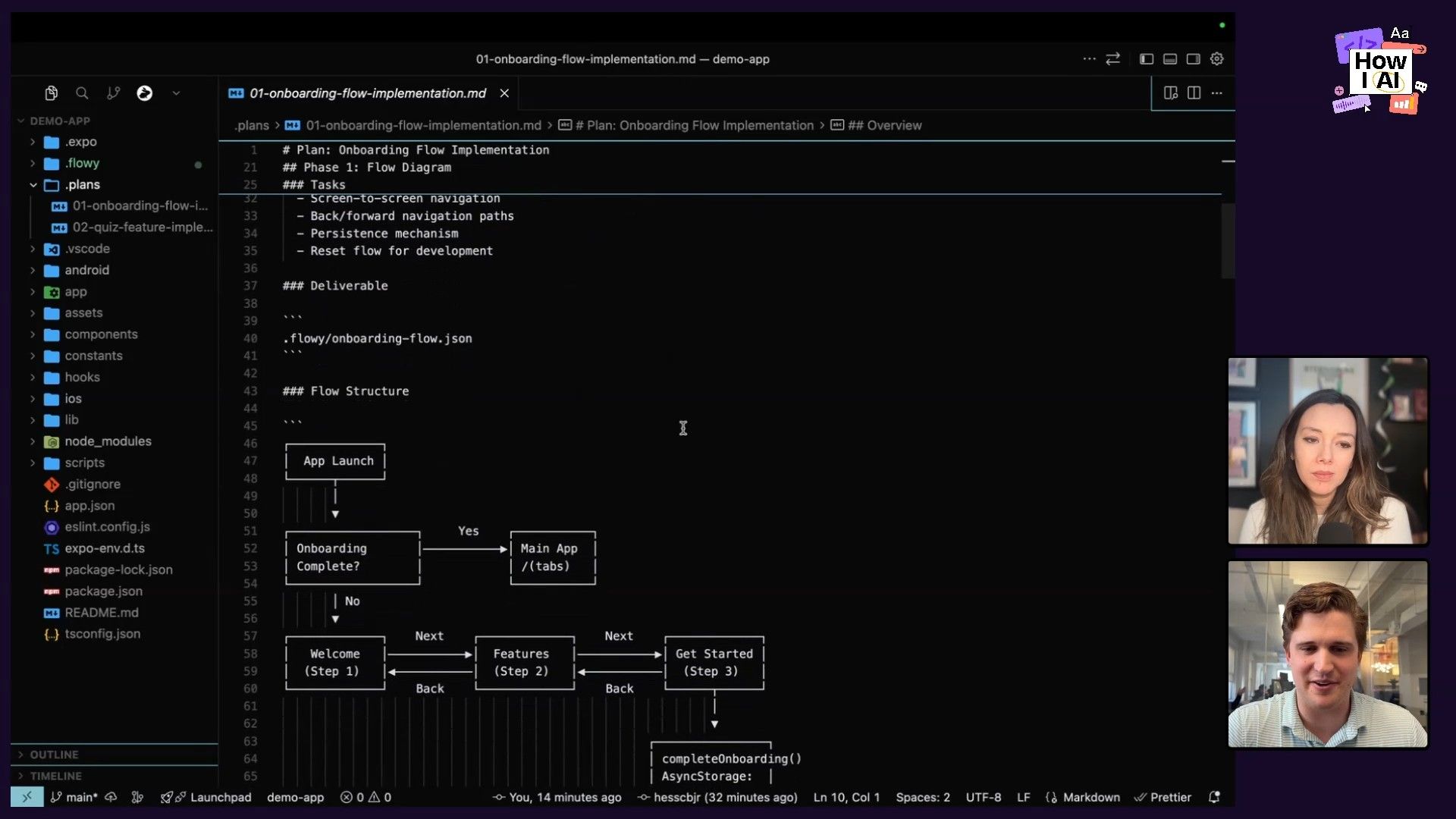
Step 1: The Initial Idea and Prompt
CJ wanted to replace a static 'Tips & Tricks' section in a demo app with a more interactive spinning wheel. Instead of just describing this in text, he decided to use his Flowy workflow. He started by giving Claude a high-level prompt in his terminal, using a custom alias kevin that calls Claude Code with bypass permissions.
"I want to create a spinning wheel where a user presses a button, the wheel spins, and then that is one of the tips. After that, the tip should pop up in a card just below the spinner. Then use the flowy flowchart skill to create a animation timing sequence diagram, and a user flow diagram for the tips and tricks page."
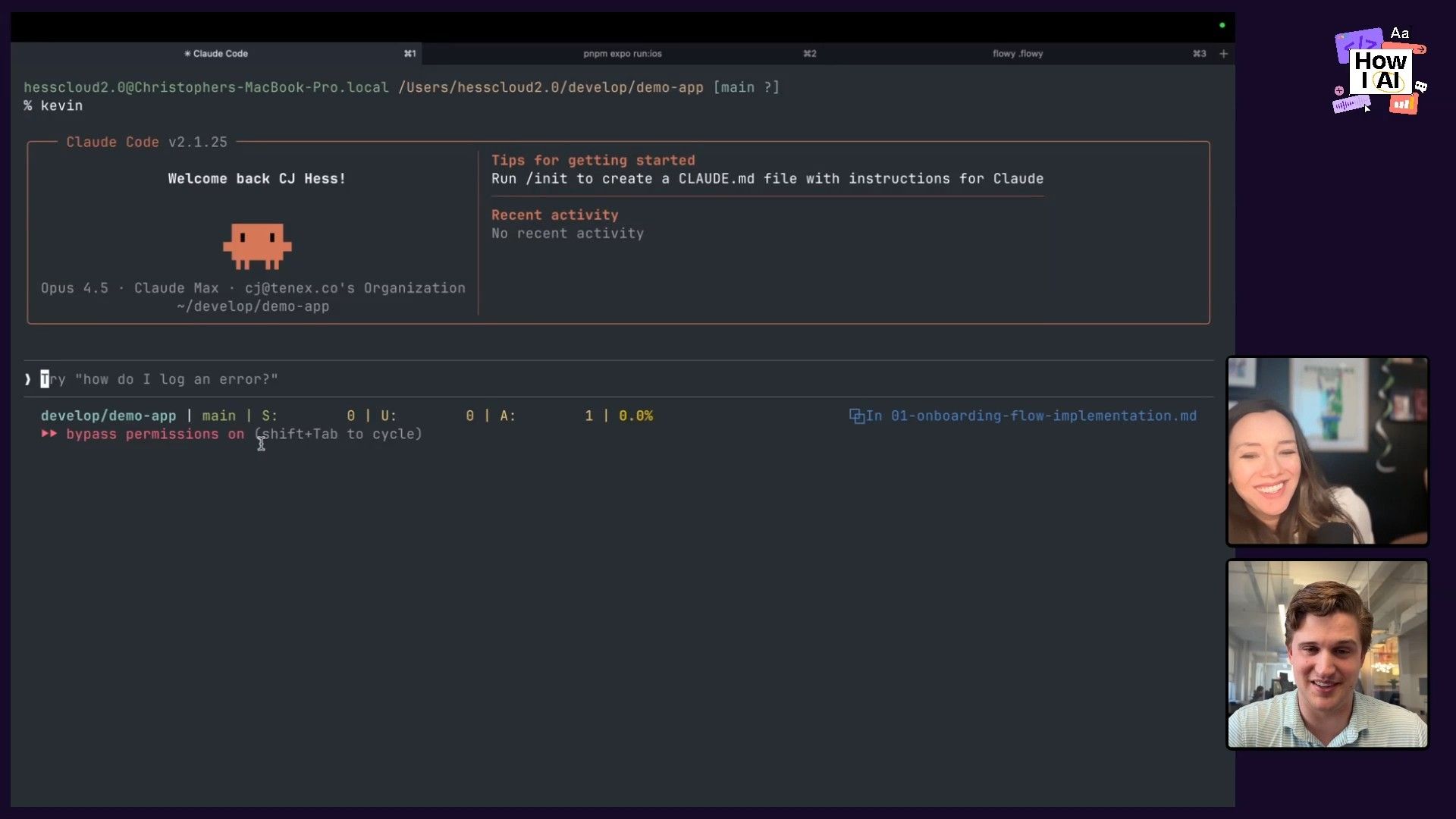
This prompt does two things: it describes the desired feature and explicitly tells Claude to use a custom 'skill' to create the planning artifacts in the Flowy format.
Step 2: Generating Flowcharts with a Custom Skill
Claude Code, guided by CJ's custom skill, generated two JSON files: one for the user flow and another for the animation timing. When viewed in the Flowy web app, these JSON files become clear, easy-to-read diagrams.
The skill itself is a simple Markdown file (skill.md) that CJ developed iteratively. It defines the JSON schema for nodes and edges, available styles, colors, and provides examples. This skill acts as the documentation that teaches Claude how to use Flowy correctly.
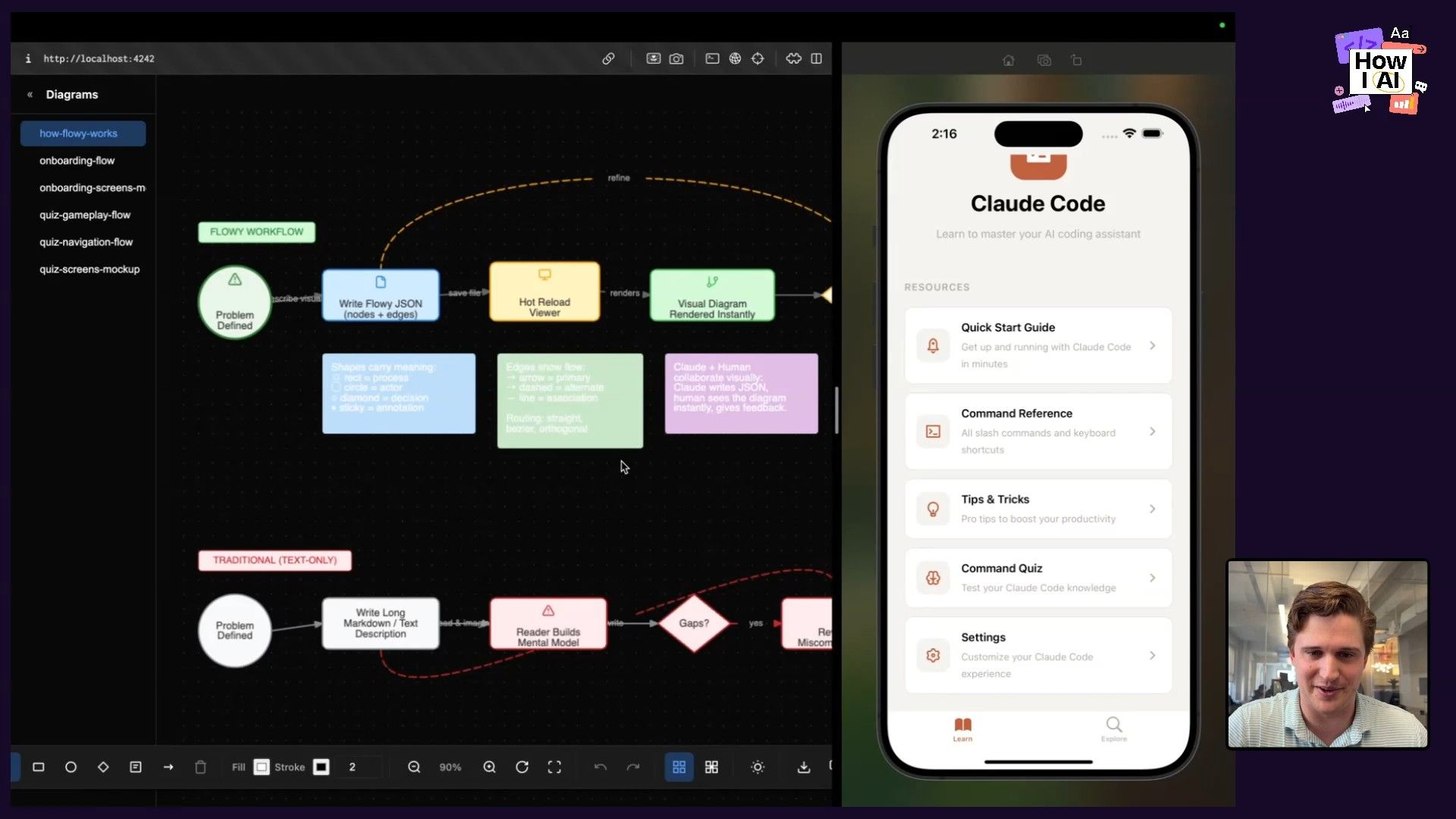
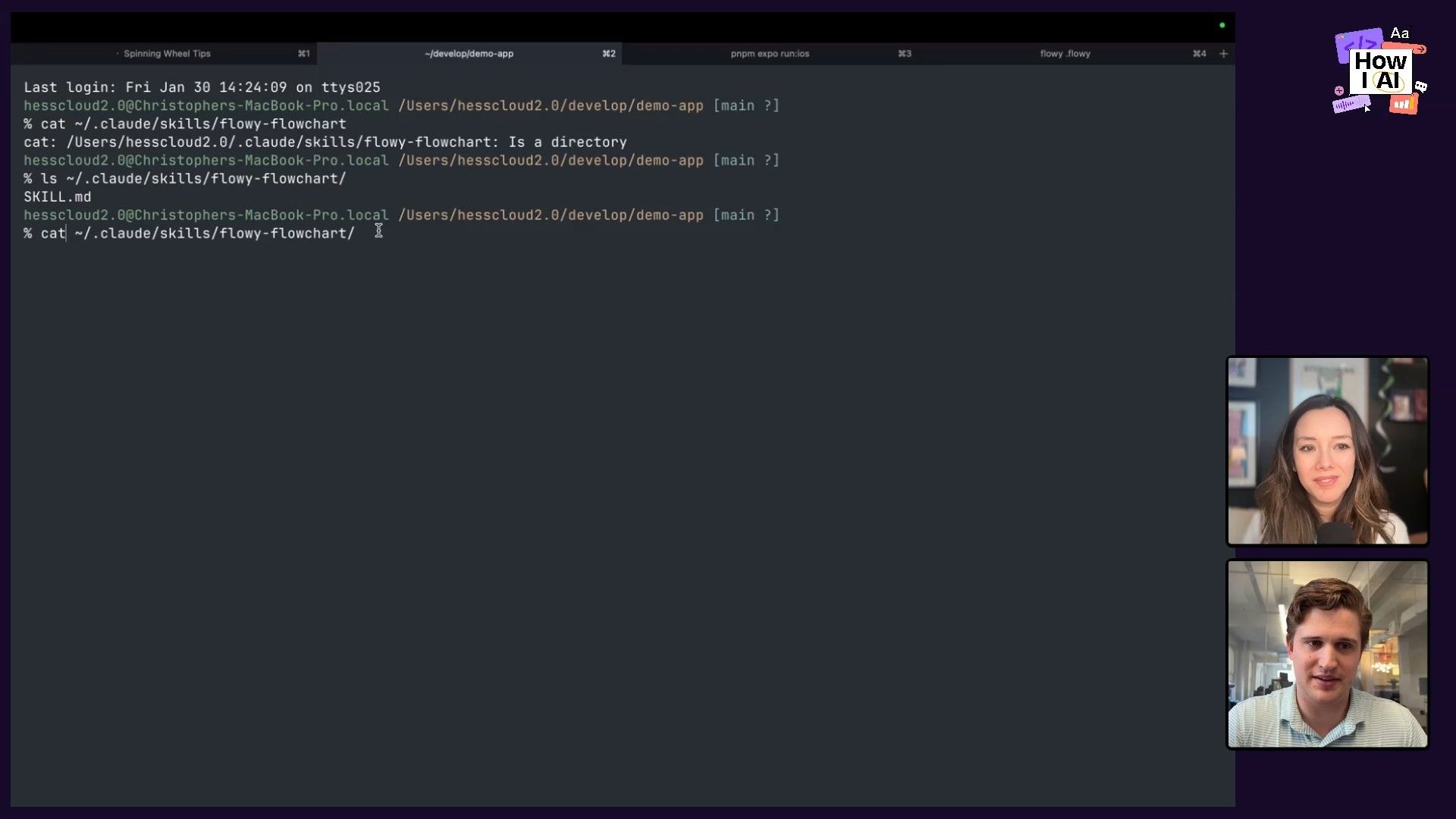
Step 3: Iterating Visually and Generating UI Mockups
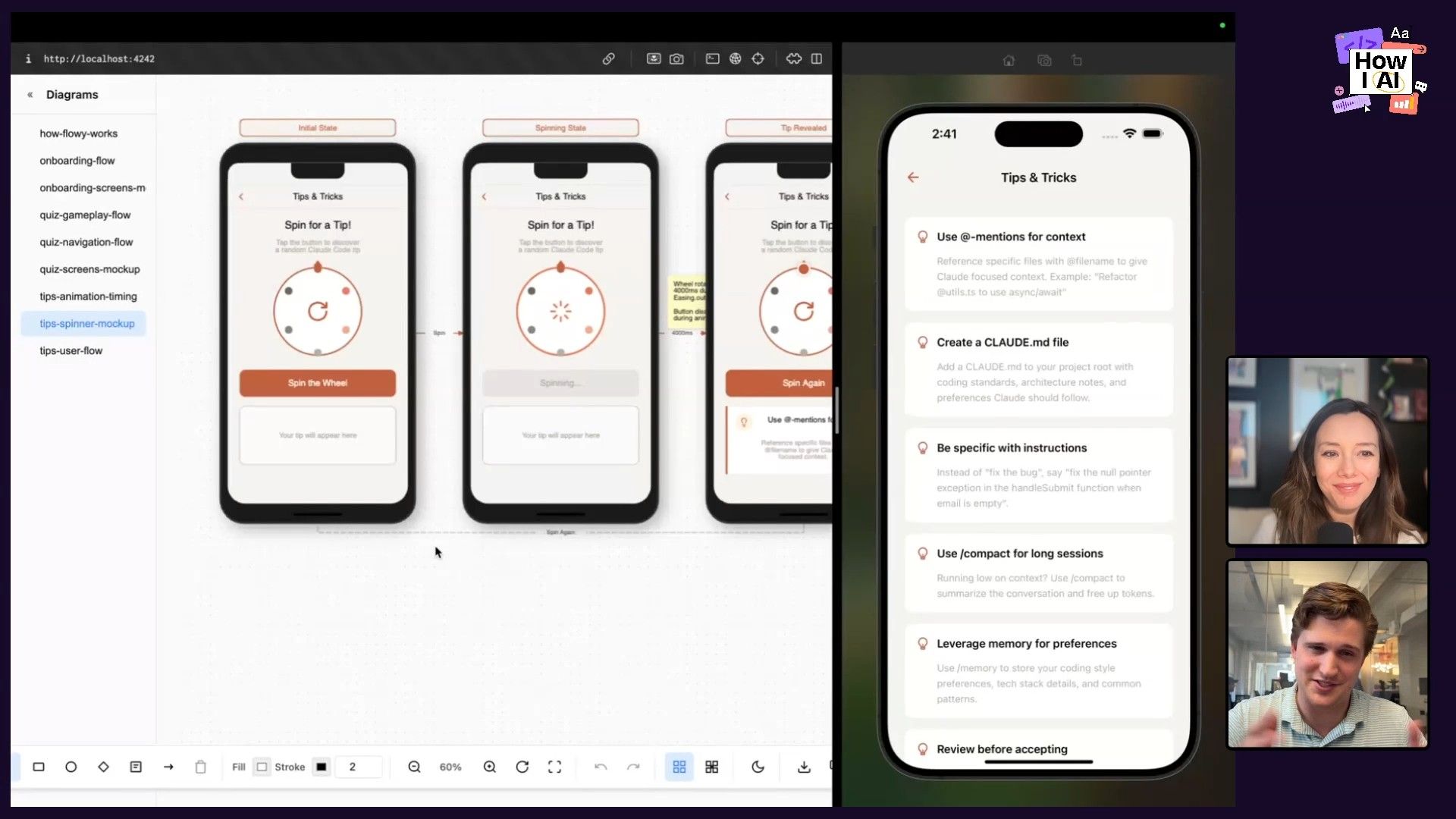
Here’s where the workflow becomes truly interactive. CJ noticed the animation was set to 3 seconds, but he wanted it to be 4 seconds. Instead of editing the JSON manually, he could edit the diagram directly in the Flowy UI, which updates the underlying file. He can then point Claude back to the file to acknowledge the change.
Next, he asked Claude to create a UI mockup based on the diagrams.
Great. Based on those diagrams, please create UI mockups using the flowy UI mockups skill reference, other UI mockup flowy JSON files in this repo.Claude generated a new Flowy file that visualized the spinner wheel in its different states—before, during, and after the spin. This provided a low-fidelity but highly effective visual guide for the final feature.
Step 4: From Visual Plan to Live Feature
With the detailed flowcharts and UI mockups complete, CJ felt confident enough to skip a detailed Markdown plan. He gave Claude a simple, direct command:
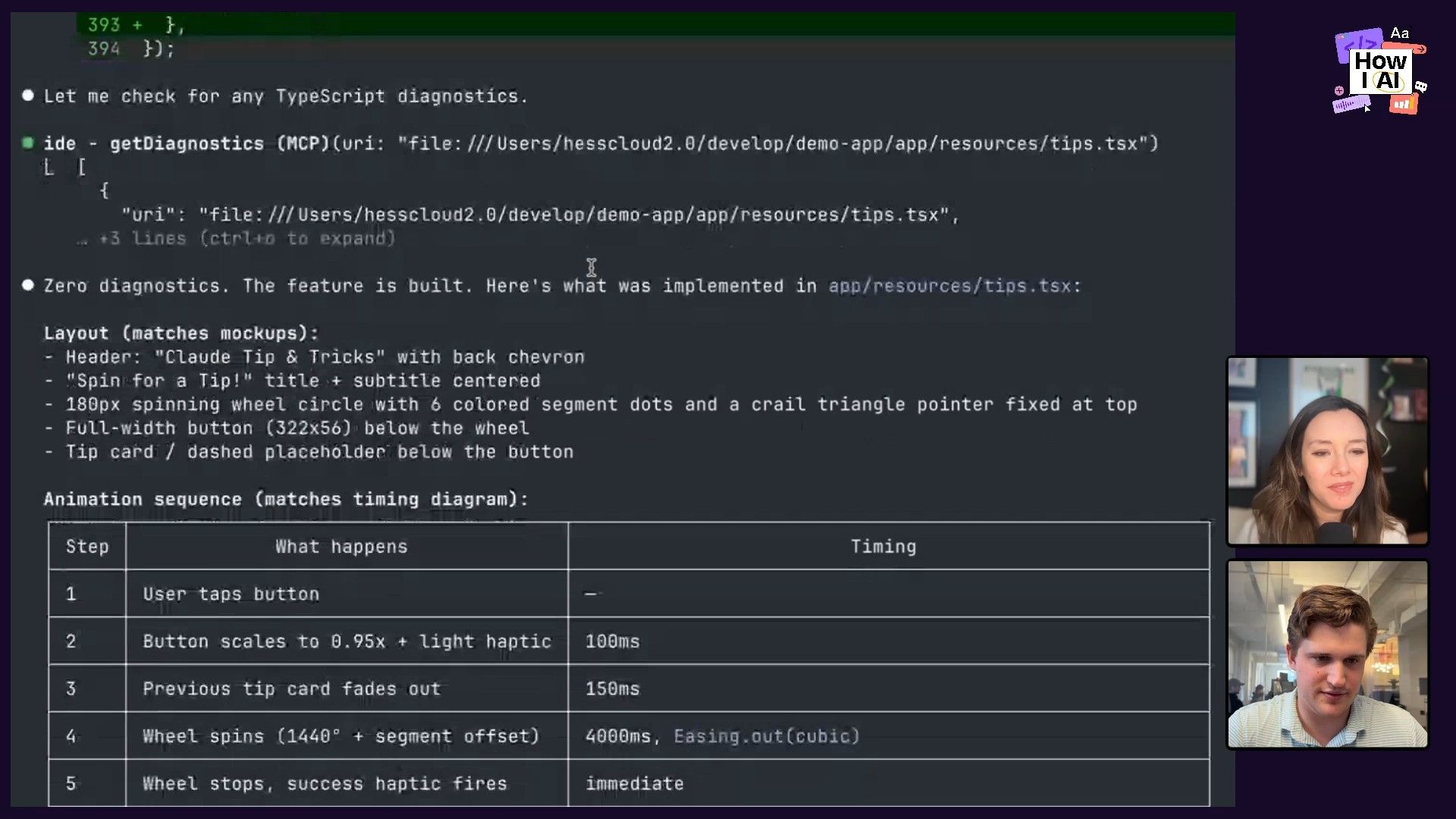
Based on the flowcharts and the mockups, build this feature.Because the planning artifacts were so clear and specific, Claude was able to understand the full context and implement the feature correctly. Within moments, CJ had a working spinner wheel in his app that behaved exactly as designed in the Flowy diagrams.
Workflow 2: Quality Control with Model-vs-Model Code Reviews
Claude is incredibly fast and capable, but as CJ says, "Claude is very eager sometimes and maybe jams things in there without thinking about the bigger picture." Vibe coding can lead to technical debt. To counteract this, CJ has developed a brilliant workflow for quality control: using GPT-5.2 Codex to review Claude's code.
He treats Codex like a critical, experienced staff engineer. While he finds Claude more 'delightful' and 'steerable' for the creative coding process, he leverages Codex's rigor for code review. This multi-model approach allows him to get the best of both worlds.
Step 1: Kicking off the Review with 'Carl'
After Claude built the spinner feature, CJ invoked his second AI assistant, aliased as carl in his terminal, which is configured to use Codex. He fed it a prompt asking for a detailed review of the code changes.
"Take a look at our current git diff and give me a report on the following:
1. Does the code accurately reflect the plan/diagram artifacts?
2. Are there any general code smells?
3. If we were to do this again and take a different approach to refactor code around it to overall improve this code base, what approach would be best?"
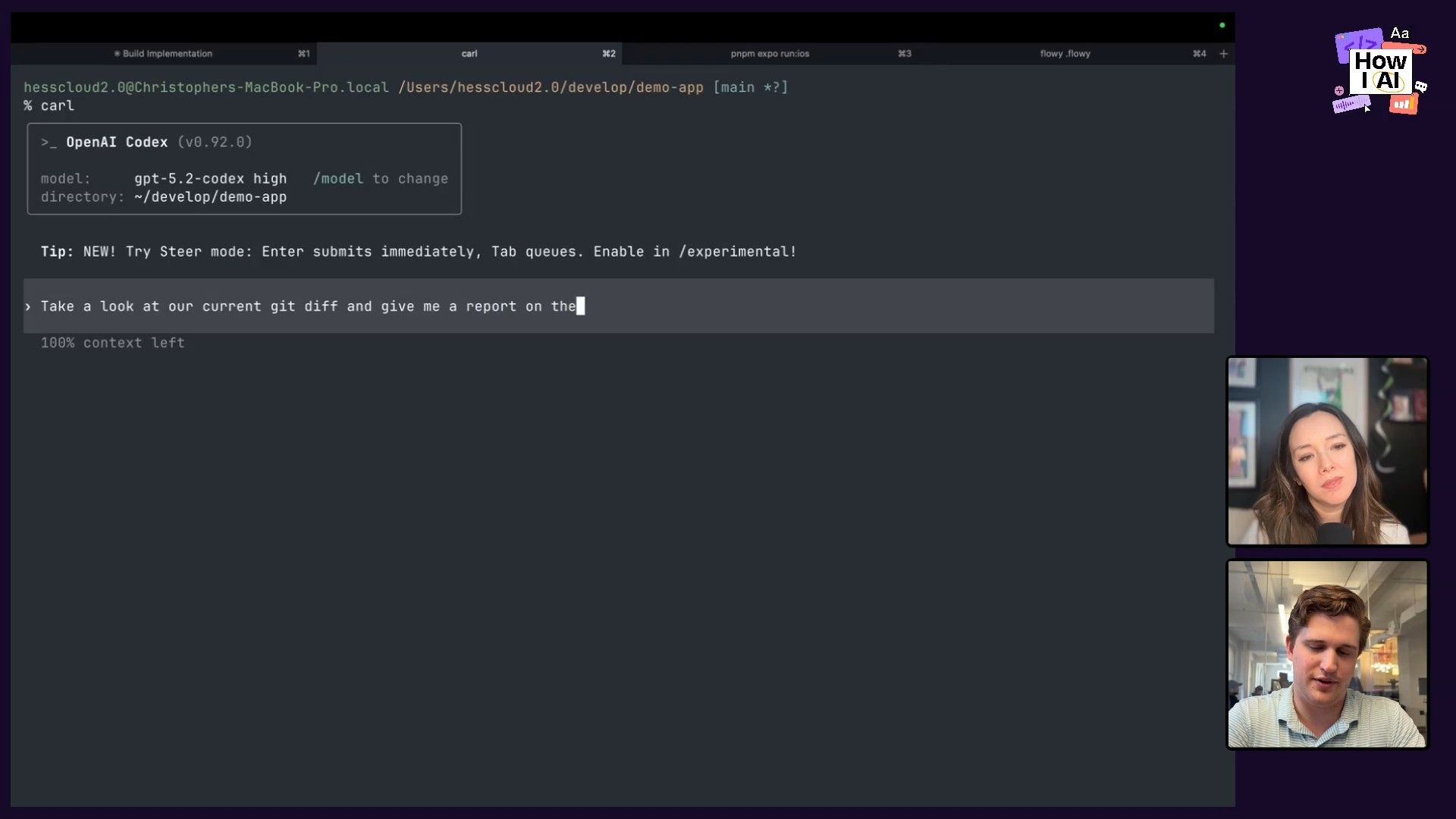
This structured prompt asks Codex to check for correctness, quality, and strategic improvements.
Step 2: Analyzing the Feedback
Codex returned a detailed report that was impressively insightful. It identified several key issues:
- Discrepancy: It noticed a subtle visual bug where the spinner's pointer was designed to land on a dot in the mockup but was landing between dots in the actual implementation.
- Code Smells: It pointed out classic issues like missing dependencies in a
useEffecthook. - Refactoring Opportunities: It suggested pulling out logic into separate components and defining constants to improve code organization and maintainability.
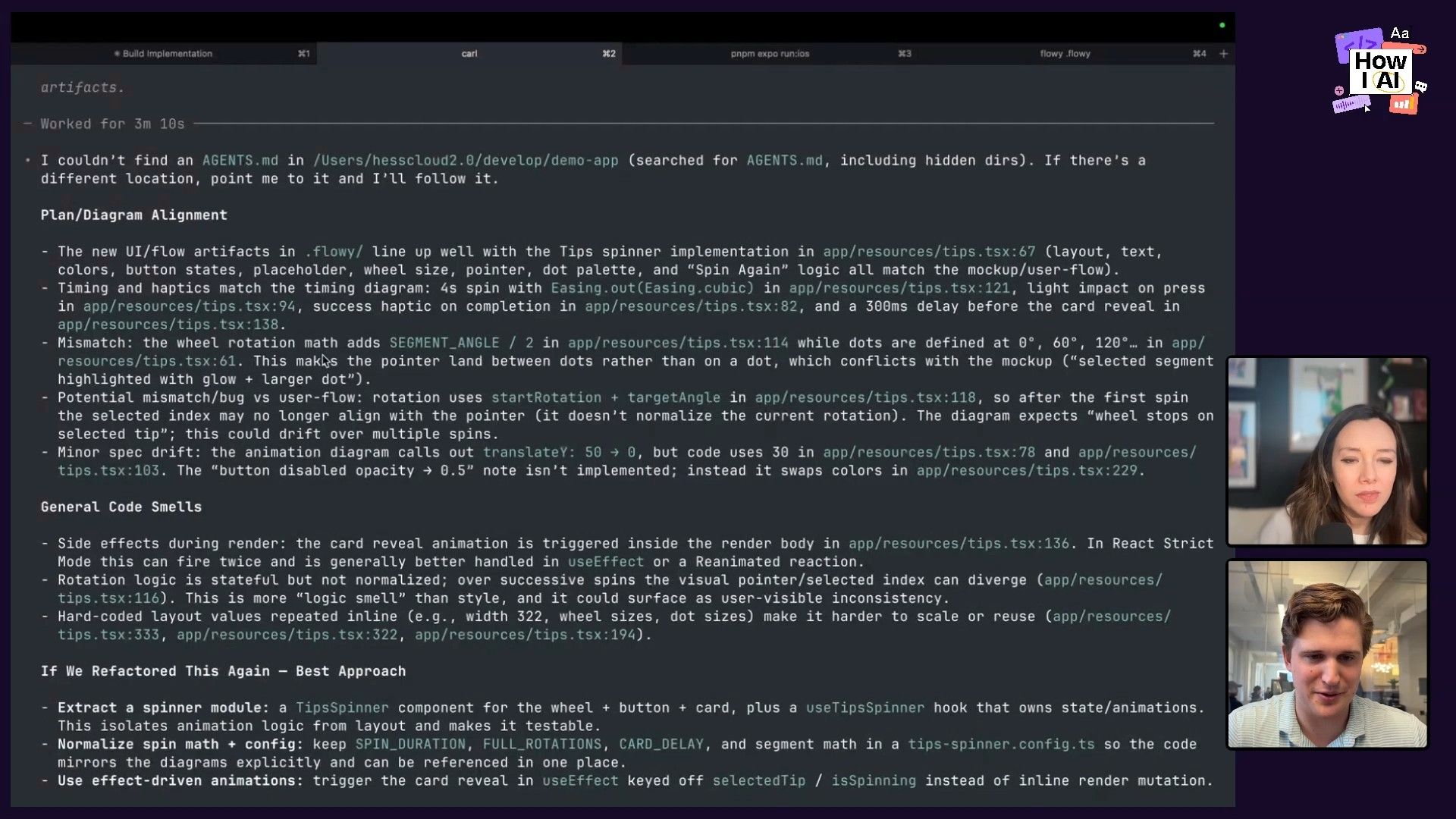
This is the kind of feedback that prevents small vibe-coded features from degrading the health of a codebase over time.
Step 3: Implementing the Fixes
Once Codex identified the issues, the final step was simple. CJ just asked it to make the changes it had suggested.
great, please make those improvementsCodex then proceeded to refactor the code, fixing the bugs and implementing its own suggestions. This closed the loop, resulting in a feature that was not only functionally correct but also well-structured and robust.
Conclusion: Build Your Own Tools, Trust but Verify
CJ Hess’s workflows are a glimpse into the future of software development. His work embodies two transformative ideas. First, the era of building your own developer tools is here. With the help of AI, you no longer have to live with the constraints of off-the-shelf software. If a tool doesn't fit your mental model, you can build one that does, just as CJ did with Flowy. This creates a powerful, personalized feedback loop where your tools and your skills with the AI evolve together.
Second, the 'trust but verify' model using multiple AIs is incredibly powerful. By leveraging the creative, collaborative strengths of one model like Claude Opus 4.5 and the critical, analytical strengths of another like Codex, you can build features at high velocity without sacrificing quality. It’s about assembling your own AI team, with different members playing different roles.
I left my conversation with CJ feeling incredibly inspired. He’s not just using the tools; he’s shaping them. I encourage everyone to think about their own workflows. What are the friction points? Where does communication with your AI assistant break down? The answer might just be to build a little tool or a custom skill for yourself. That’s how we’ll all become true AI engineers.
Thanks to Our Sponsors
Thank you to our amazing sponsors for making this episode possible:
- Orkes—The enterprise platform for reliable applications and agentic workflows
- Rovo—AI that knows your business
Episode Links
Try These Workflows
Step-by-step guides extracted from this episode.

Implement Model-vs-Model AI Code Reviews for Quality Control
Use a second, more rigorous AI model like GPT-5.2 Codex to act as a critical 'staff engineer' that reviews code written by your primary, more creative AI like Claude. This multi-model approach ensures high velocity without sacrificing code quality or accumulating technical debt.

Develop Features with AI Using Custom Visual Planning Tools
Build a custom visual dev tool to create interactive UI mockups and flowcharts. Use these visual artifacts to guide an AI model like Claude Code to build software features with greater accuracy and less ambiguity, bridging the gap between human intuition and AI understanding.


